FOR THE MUSIC UNDER YOUR FINGERS
Make sense of
what you play.
See chord names and staff notation as you play your MIDI keyboard. Compare jazz chord voicings and scale options, or record a take to revisit in practice or a lesson.
For iPhone, iPad, and Mac.
Check availability in the US App Store
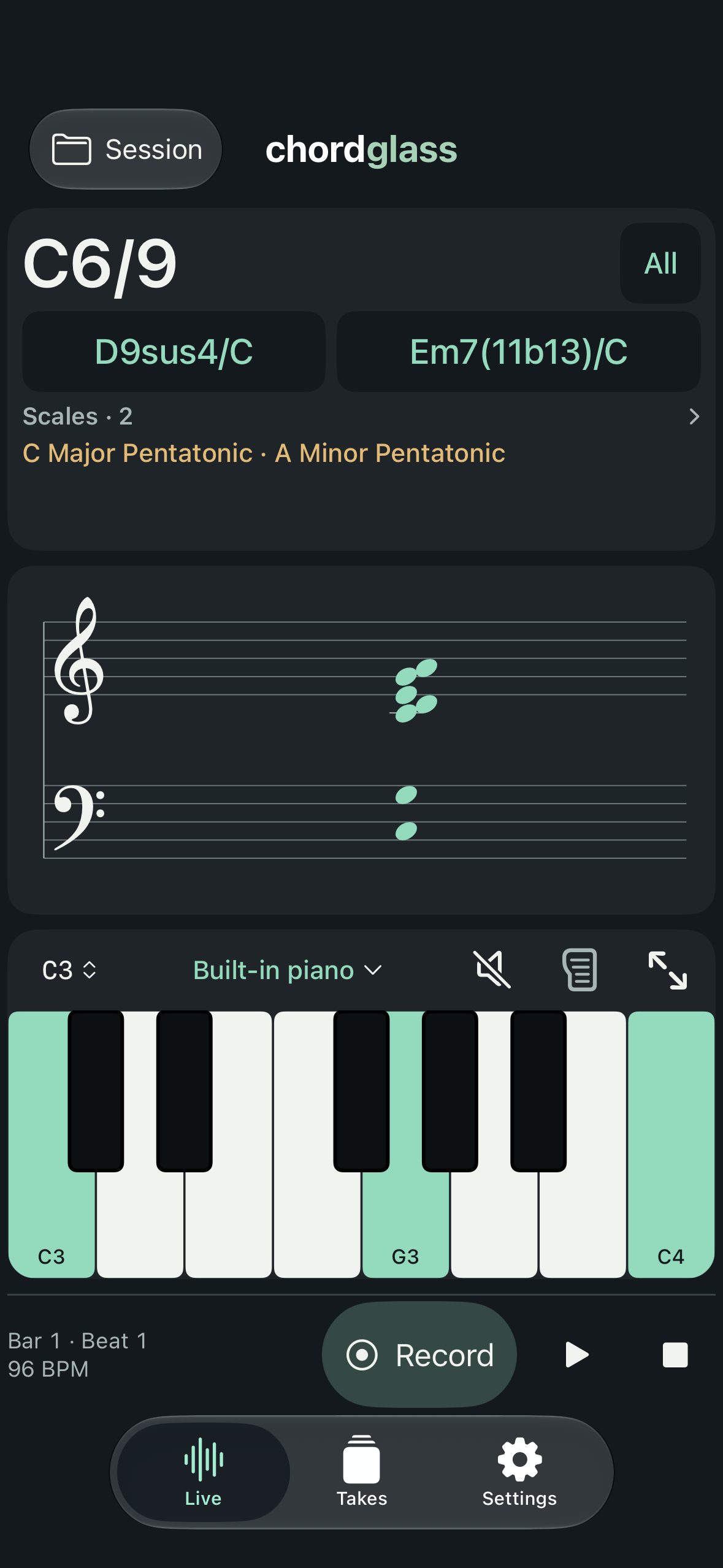
Now it has a name.
This voicing reads as C6/9. Alternate names let you consider how the same notes fit your music.
Look inside this chord01 / WHILE YOU’RE PLAYING
You like that chord.
What’s in it?
You find a voicing by ear, but cannot quite name it. With real-time MIDI chord detection, the chord reading, staff, and keyboard show how the notes fit together.
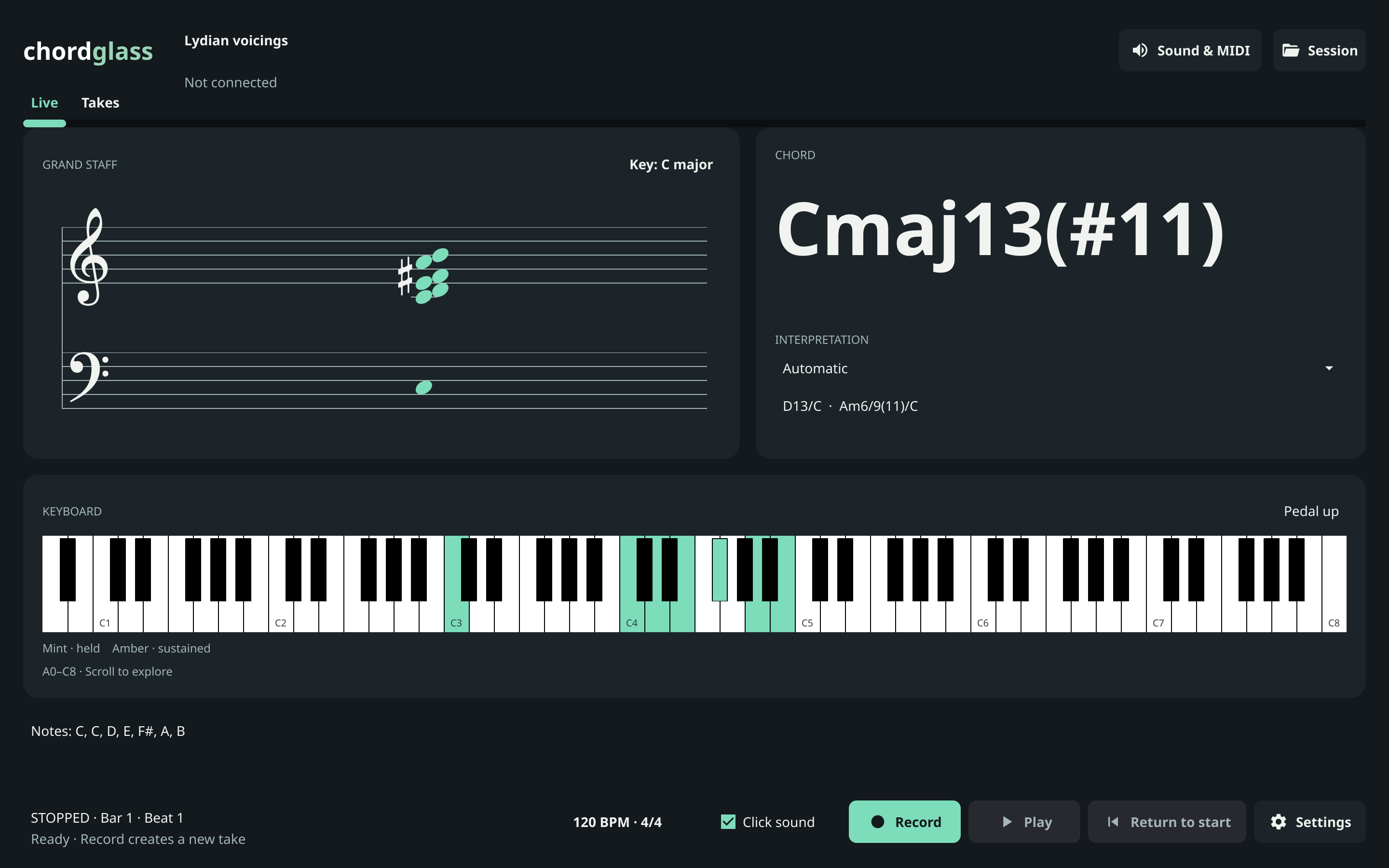
Try a different reading. A voicing may suggest more than one chord. Compare the alternatives and choose the name that makes sense in your phrase.
Put the theory to work. Explore Solo scale options for a chord, then try their added notes in your next phrase.Explore the chord examples
02 / WHEN AN IDEA ARRIVES
Play it now.
Come back to it.
A good phrase does not always arrive with a plan. Record a MIDI take, give it a name, and try another without replacing the first.
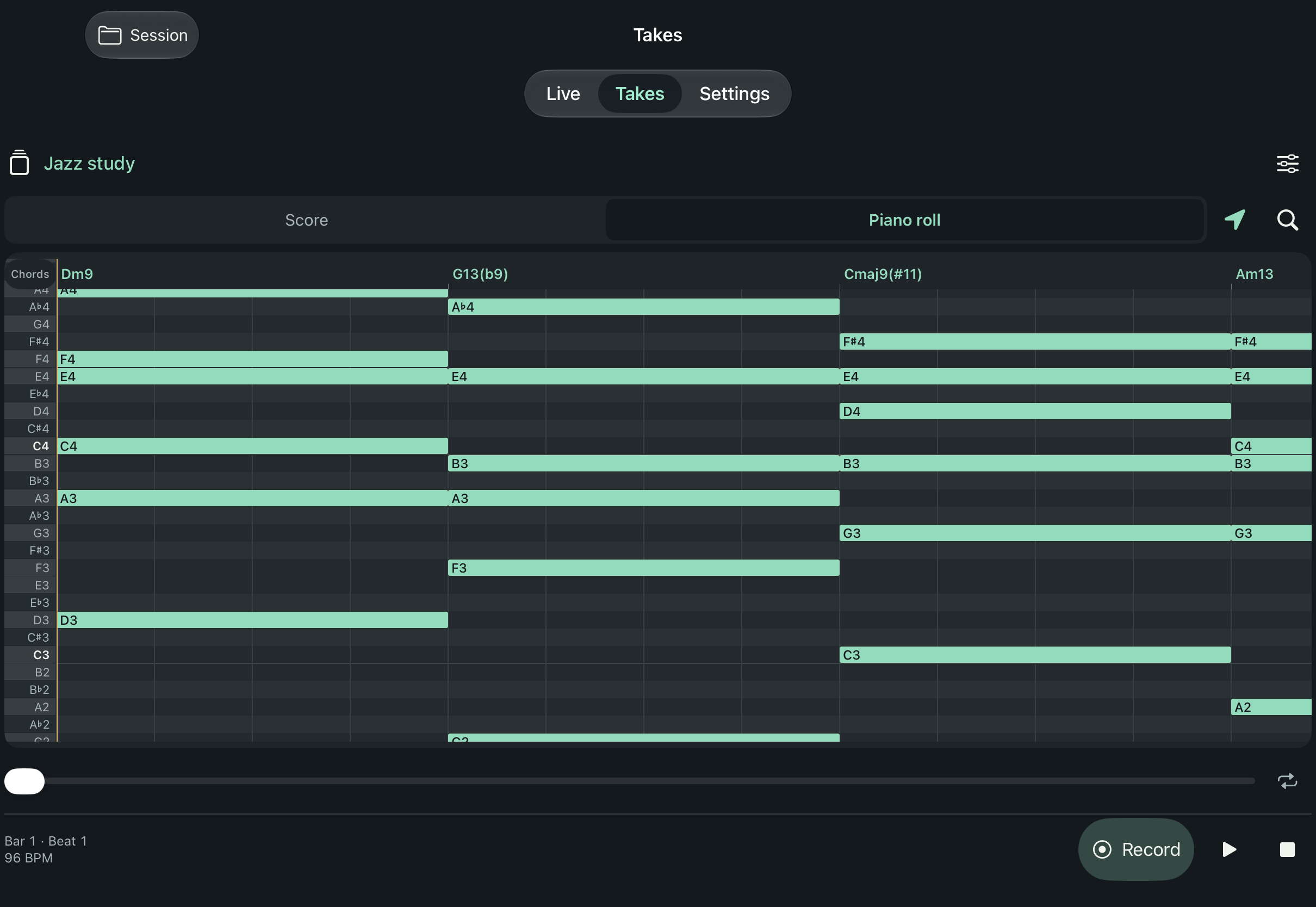
Find the part worth keeping. Replay the take, set a loop around a phrase—even one that starts between beats—and inspect the piano roll. Read it as a score while keeping the timing of your original performance.
Carry the idea forward. Export MIDI to your DAW, MusicXML to a notation editor, or a .chordglass session to keep your takes together.Follow an idea from take to score
03 / AT A LESSON
Give the explanation
something to point to.
Play a voicing for a student and look at the same screen together. Follow each highlighted key to its note on the staff, then connect those notes to the chord name.
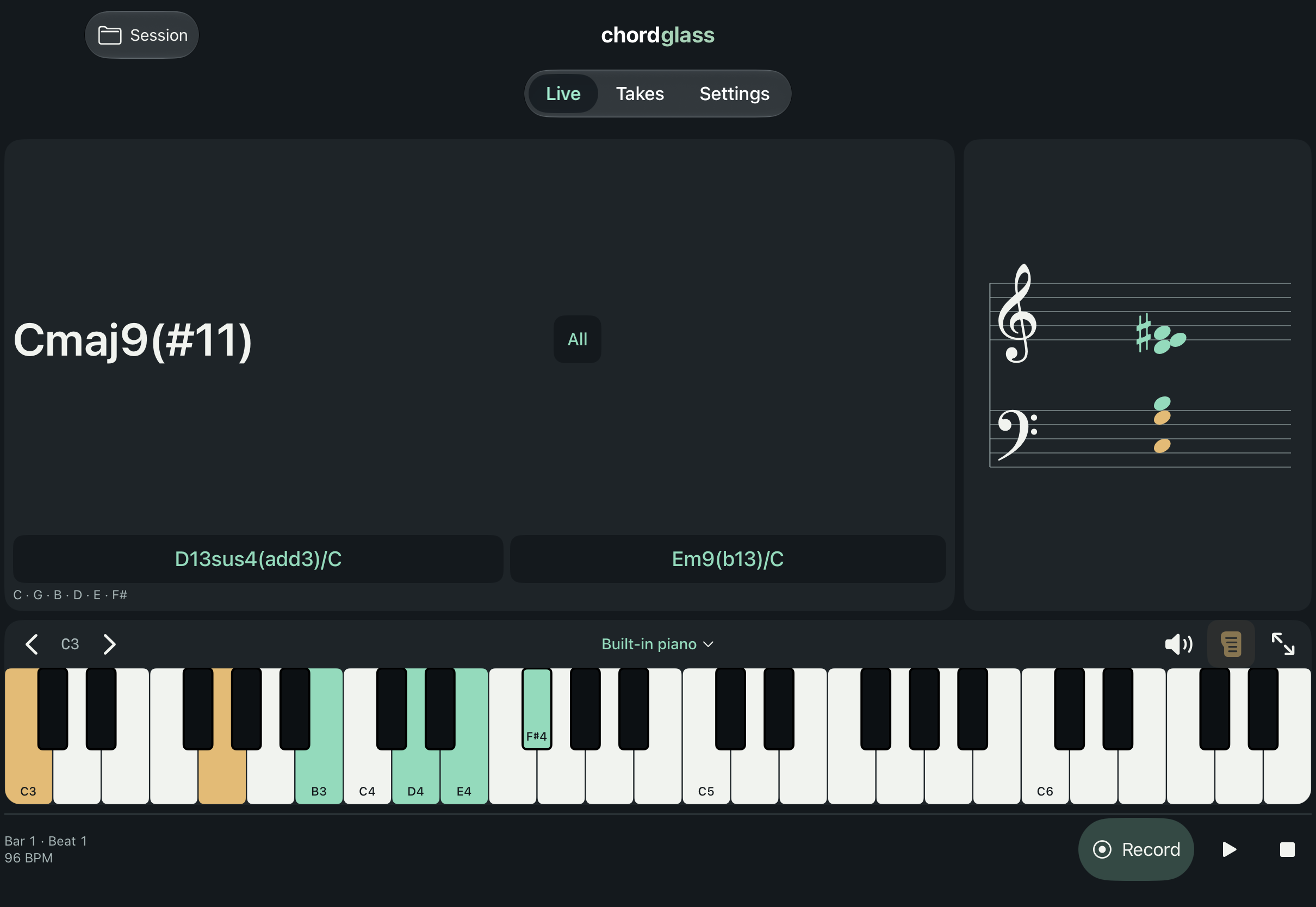
Make the pedal visible. Release notes under the sustain pedal and see which ones keep sounding. On iPhone and iPad, touch sustain also lets you hold a voicing while you talk it through.
Start a musical conversation. Compare two readings of a chord, show an interval, or explore why C major and A minor pentatonic share their notes.See the notes behind the sound
ON IPHONE DUO
Play the voicing.
Share the explanation.
Work through a musical idea on your own, then turn the same notes toward a student. Arrange the view around the way you’re playing or teaching.
AT YOUR KEYS
Work out what you hear.
Give the touch keyboard more room while keeping chord names and the staff in view. Play a voicing, compare its interpretations, and open Solo scales for notes to try in your next phrase.
Connect a MIDI keyboard when you want to use your own keys.
Explore a voicing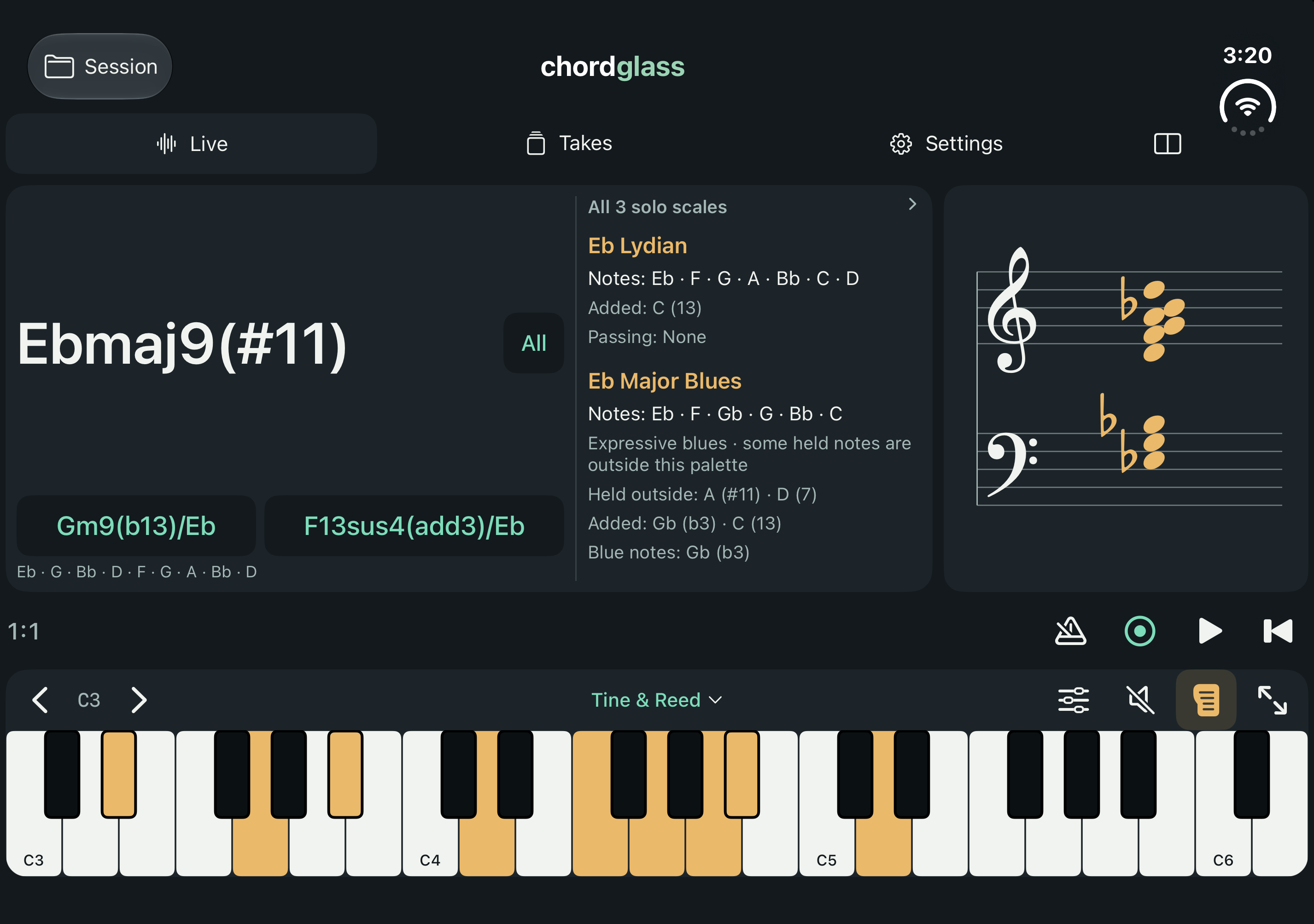
ACROSS THE TABLE
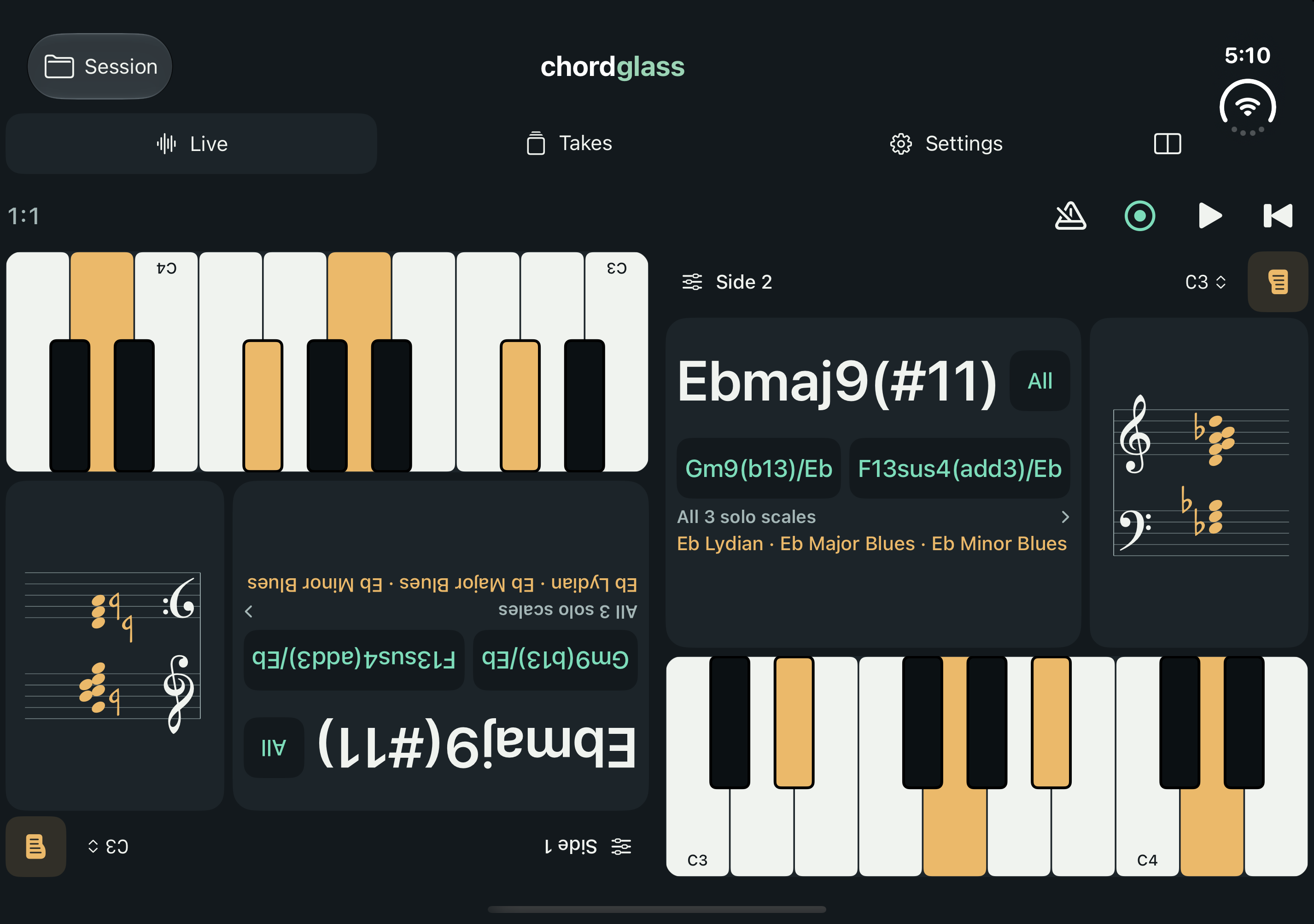
Show it from both sides.
Turn on Table mode for a lesson. Arrange one view toward you and another toward your student, so you can both follow the same music. Choose the keyboard, chords, and staff shown on each side, then play a phrase and point out how its notes fit together.
Both views follow the same performance and share the same sound.
AT YOUR KEYBOARD. ON YOUR DEVICE.
Bring your keys.
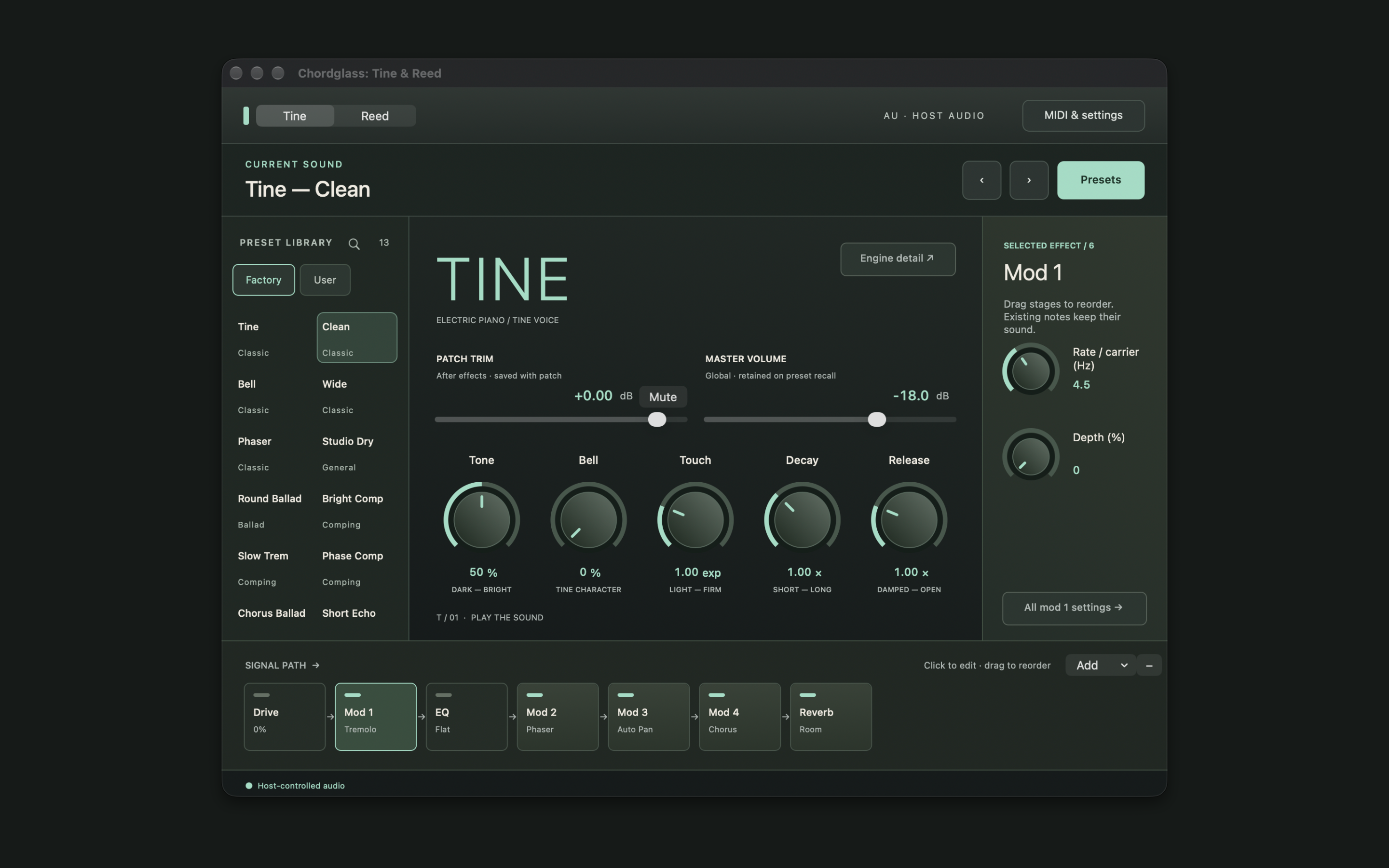
Meet Tine & Reed.
Tine & Reed brings two electric-piano voices to Chordglass: Rhodes-style Tine and Wurlitzer-style Reed. On first use, Chordglass enables Tine automatically. Connect a compatible MIDI keyboard, or use the touch keyboard on iPhone and iPad. The included instrument needs no separate installation. Open instrument controls to choose Tine or Reed, shape the sound and effects, or select a preset.
Already have a sound you love? Use compatible Audio Unit or VST3 instruments on Mac, or AUv3 instruments on iPhone and iPad. You can also send MIDI to your chosen hardware or music app.
Explore Tine & ReedYour music saves on your device. No Chordglass account is needed.
BEFORE YOU PLAY
A few
practical things.
What do I need to start playing?
Connect a compatible MIDI keyboard or controller. On iPhone and iPad, you can also use the touch keyboard, including touch sustain. Tine & Reed is included, so your controller does not need its own sound engine.
What if a chord has more than one name?
The same notes can have several musical meanings. Chordglass shows alternate interpretations so you can choose the one that fits your phrase. It recognizes intervals, inversions, slash chords, and extended and altered chords.
Can it tell me which scale to solo with?
Solo suggests scale options for supported chord interpretations, using the chord you choose and your session’s key. Explore the added notes, passing tones, blues colors, and reasons for each option. Exact matches identify the complete collection sounding together; other options suggest notes to explore. Use your ear to choose what fits the phrase.
How does the key setting work?
Sessions start in C major. Choose a major or minor key to guide written notes, chord names, and Solo suggestions. The choice is saved with the session and applies to Live, every take’s score, and MusicXML export. It does not transpose your playing or change recorded MIDI.
Can I loop a pickup or part of a bar?
Yes. Use Bars for whole bars, or Beats to choose start and end positions within a bar. For example, 4 & and 4.5 both mean halfway from beat 4 to the next beat. In Beats mode, playback returns to the start when it reaches your end position; that endpoint is not included.
What does a take record?
A take records MIDI notes, their timing and dynamics, and pedal information. It records your controller or the touch keyboard, not microphone audio or video. There is no overdubbing or manual note editing; export MIDI to continue arranging in a DAW.
Does making the score easier to read change my playing?
No. Adjust the score’s written rhythm for the whole take or selected bars while the recorded timing and playback stay unchanged. Export MusicXML for further work in a notation editor. Complex performances may need notation cleanup.
Can I use my own instruments?
Use compatible Audio Unit and VST3 instruments on Mac, or installed AUv3 instruments on iPhone and iPad. You can also send MIDI to a hardware instrument or another music app. Additional instruments and their sample libraries are installed separately.
Why is my plug-in asking me to authorize it again?
Some licensed Audio Unit and VST3 instruments, including older versions, may request authorization inside Chordglass even if they work in another music app. This can depend on the instrument’s licensing system and the host app’s environment. Follow the vendor’s normal activation steps. Authorization may carry across Chordglass updates, but this varies by instrument.
Where does my music go?
Your sessions save on your device. Chord analysis, recording, and notation work offline, with no Chordglass account. Export a .chordglass session to back it up or move it to another device yourself; there is no automatic cloud sync.
CHORDGLASS FOR IPHONE, IPAD & MAC
The next idea
starts at the keys.
Check availability in the US App Store
iOS 17 or later · iPadOS 17 or later · Check current Mac requirements